
Once you’ve Registered a new screen will open up where you can edit your profile.
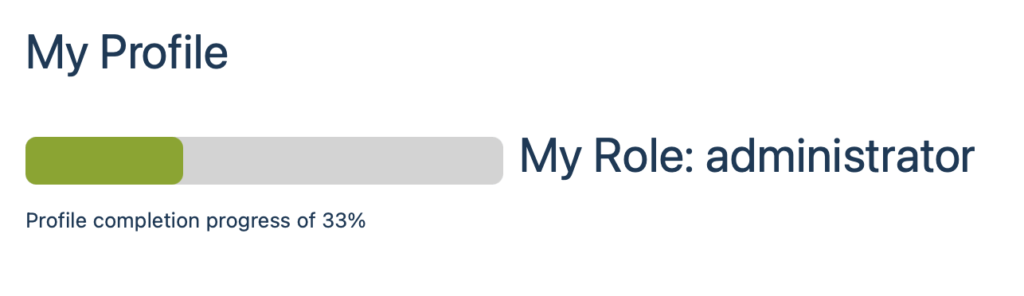
As you were required to provide some personal information to register an account you will see that there is only a percentage of your profile left to complete. In the below example the newly-registered profile is 33% complete.

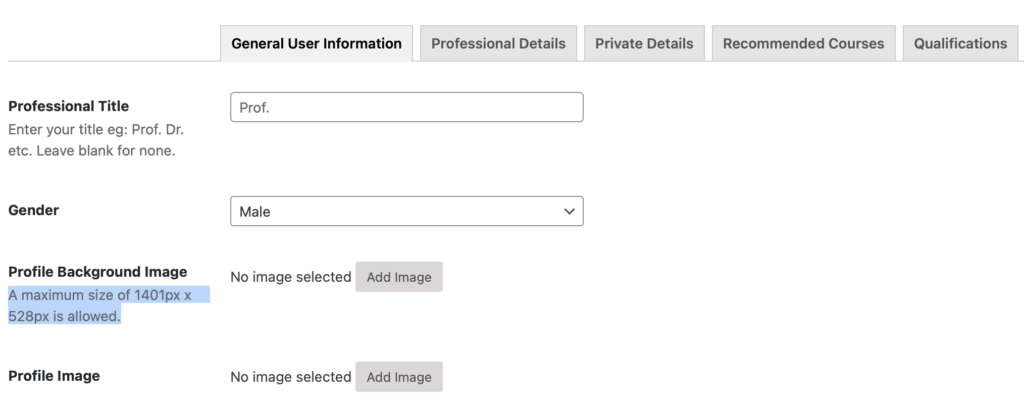
You can use this space to create a professional profile that tells people more about your experience and your current work. You’re also welcome to upload a cover photo (please note that there is a size limit: 1401px x 528px) as well as a profile picture. Remember to click on Update Profile to finalise any changes you make.
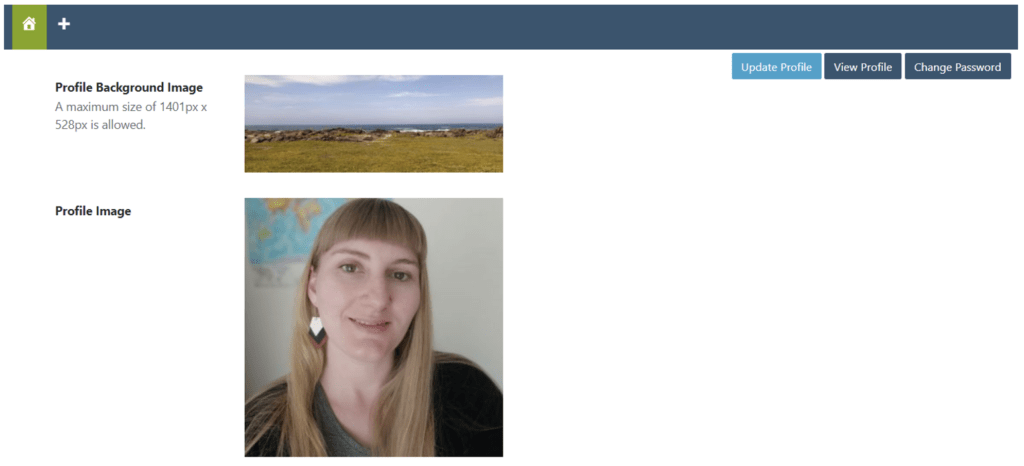
You can also change your Username if you’re not happy with the one automatically generated by DIGI-FACE.
Please note that there are different tabs where different types of information are required (General User Information, Professional Details, Private Details, Recommended Courses, Qualifications, Publications).
Users can decide how much of their information is private, available for all to see, or just available to other members by clicking on this icon.



We encourage all users to fully complete their profiles. So please take the time to fill as much as you can before clicking on Update Profile (the first button you’ll see in the top right hand corner of your screen).
Updating your profile at a later stage #
If you have more information you would like to add to your DIGI-FACE profile you can do so. Just follow these simple steps:
- Ensure you are logged in.
- Click on Dashboard next to the gear icon in the top left hand corner of your screen.

- This will take you back to the My Profile screen where you can update or amend your information.
- If you’d like to add your qualification to your profile simply find Qualifications on the side bar (left hand side of your screen).

- You will see two options become available if you hover over Qualifications with your mouse: All Qualifications and Add New.

- If you click on All Qualifications you will see a list of all the qualifications you’ve added appear. Here you can choose to Edit, Bin (delete) or Duplicate This.
- The Add New button will also appear next to the page name as well as in the sidebar menu on the left hand side of your screen.
- Click on Add New to open up a new screen where you can provide information about any additional qualifications you would like to include on your profile.

- You can add the “title” of your qualification e.g. Master of Laws.
- Finally click on Submit for Review to complete the process.
Once your information has been verified it will be approved and appear on your profile.